Privacy choices

Cookies and tracking

Necessary cookies keep login, consent, product selection, and account sessions working. Analytics and marketing run only if you allow them.

after effects-skills

Nexa Voice Assistant.

From idea to animation in seconds. Nexa applies effects, imports presets, builds animations, saves presets, imports assets, and removes workflow friction while keeping every local Skill confirmable before it changes the project.

Download Free BetaBeta macOS download

Problem

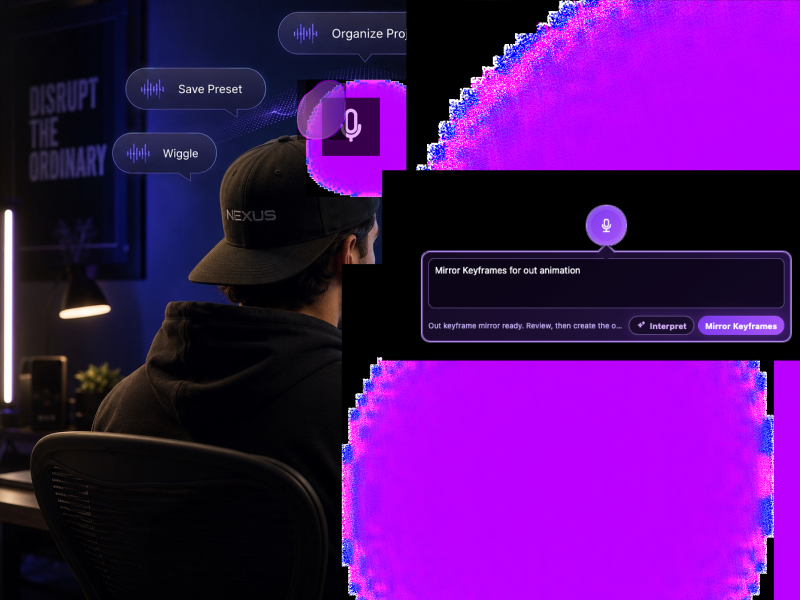
Nexa voice assistant hero artwork for After Effects Skills
Why it matters

The friction this removes

After Effects automation is powerful, but the friction of menus, script folders, and repeated setup breaks creative flow.

01

Benefit 1

Turns everyday workflow commands into confirmable local actions.

02

Benefit 2

Runs command variations without ChatGPT or Claude.

03

Benefit 3

Bundles the macOS CEP panel and Nexa Electron overlay in one installer.

04

Benefit 4

Creates the foundation for paid Skills, Pro interpretation, and server-protected premium workflows.

How it works

A faster path from raw edit to finished content

Simple workflows are the point. Nexus products are made to cut clicks, reduce repetition, and keep output moving.

Step 1

Install the macOS CEP panel.

Step 2

Open Nexa while After Effects is active.

Step 3

Run local Skills by voice or typed command after confirming the action.

FAQ

Questions about Nexa

Installation, permissions, supported commands, and the AI interpretation path are all covered before a user downloads the beta.

01

How do users install Nexa on macOS?

Users download and unzip the beta package, quit After Effects, then Control-click INSTALL-macOS.command and choose Open if macOS blocks it. After installation they reopen After Effects, go to Window > Extensions > Nexa, and start the overlay from ~/Applications/Nexa.command if it is not already open.

  • The installer places the CEP extension inside ~/Library/Application Support/Adobe/CEP/extensions/Nexus AE Voice Assistant Beta.
  • The package includes the macOS CEP panel, the Nexa Electron voice overlay, local Skills, and uninstall scripts.
  • After Effects should be restarted once after installation so the extension menu refreshes.
02

Which macOS permissions does Nexa need?

macOS may ask for permissions the first time Nexa, After Effects, Terminal, Python, or the overlay tries to listen or automate an action. The exact app name shown by macOS can vary, but these are the important areas to check.

  • Microphone: allow Nexa, Electron, After Effects, Terminal, iTerm, or Python if they are running voice capture.
  • Dictation and Speech Recognition: turn on Dictation in System Settings > Keyboard > Dictation, and allow Speech Recognition if macOS shows that privacy option.
  • Accessibility: allow After Effects and the Nexa launcher if shortcuts, focus changes, or automation-style actions are blocked.
  • Automation or Input Monitoring: allow only when you intentionally use Nexa to communicate with After Effects or respond to shortcuts.
03

How does the user actually use Nexa?

Open an After Effects project, open Window > Extensions > Nexa, launch the overlay, select the layer or property you want to work on, then speak or type a command. Nexa shows the matched Skill and a confirmation summary before it applies the change.

  • Select text layers before expression, text, or animation commands.
  • Select animated layers or properties before mirroring keyframes to the out point.
  • Cancel and rephrase if the confirmation does not match what you meant.
  • Use After Effects Edit > Undo if you want to reverse the last applied action.
04

What commands work in the beta?

Nexa accepts typed or spoken command variations, so users do not have to memorize exact wording. The beta focuses on practical After Effects actions that are local and confirmable.

  • Project cleanup: organize project folders, clean up my project panel, sort the After Effects project.
  • Keyframes: mirror keyframes for out animation, duplicate intro keyframes to the out point, fade in opacity keyframes, fade out selected layers.
  • Expression presets: apply soft wiggle, hard pulse, bouncer, sway, neon flicker, hover, spin, random jitter, or inspiration.
  • Motion helpers: add camera shake adjustment layer, create wavy distortion layer, center parent, center null on child, center child anchor point.
  • Scene and text builders: create 3D world scenes, animated text lines, infinite text sliders, repeating text rows, or moving text backgrounds.
  • Production utilities: replace project text, replace expression text, open placeholders, deep duplicate compositions, open preset library, save/apply presets, sync markers, change layer colors, increase quality, add pointer proximity, and match cuts.
05

Does Nexa require ChatGPT or Claude?

No. The current beta works with local command matching, so users do not need a ChatGPT account, Claude account, OpenAI key, or Anthropic key. Users can speak or type supported commands and Nexa maps them to local Skills.

06

Why is it powerful to add ChatGPT or Claude later?

An LLM can turn Nexa from a strict command matcher into a more flexible creative assistant. Instead of forcing users to remember commands, it can interpret messy language and convert it into a safe structured plan that Nexa validates before After Effects changes anything.

  • It can understand requests like make this intro punchier and exit clean at the end.
  • It can support imperfect dictation, different languages, and longer creative instructions.
  • It can ask a follow-up question when the request is missing a detail.
  • It can chain several allowed local Skills into one reviewed plan.
  • It can explain what will happen before the user confirms.
07

How can the LLM idea stay protected?

For a commercial product, the best architecture is to keep secret prompts, license logic, premium workflows, and API keys on the Nexus server. The local app should send the request to the backend, receive an allowed JSON command plan, validate it, show a confirmation, and only then run approved local Skills.

  • Backend-controlled interpretation protects the product idea better than shipping the full prompt system inside the downloadable app.
  • Bring-your-own-key mode can be optional for power users, but it protects less than a server-controlled Pro workflow.
  • Nexa should always validate allowed actions and require confirmation before changing an After Effects project.
08

What should users do if voice input does not work?

First confirm the Skill works by typing the command directly in the overlay. If typed commands work but voice does not, the issue is usually a macOS permission or dictation setting.

  • Check System Settings > Privacy & Security > Microphone.
  • Turn on System Settings > Keyboard > Dictation.
  • Allow Speech Recognition if macOS shows that privacy option.
  • Restart Nexa and After Effects after changing permissions.
  • If an action is blocked, check Accessibility, Automation, and Input Monitoring permissions.
Nexus Creative Lab

Build a faster editing workflow.

Use this product as your next workflow upgrade, or explore the wider Nexus system to find the right combination for how you edit.

Related Products

Discover more tools from Nexus

Build the workflow that fits the way you edit.

Script Runner Skill

Coming soon

Unlock a scripts folder picker and run local JSX scripts by exact name, partial keywords, or aliases.

Fits into your workflowDiscover product →

Duplicate Compositions Skill

Coming soon

Premium deep duplication for selected compositions, nested comps, and safer naming workflows.

Fits into your workflowDiscover product →

Advanced Text Animation Skill

Coming soon

Premium text rigs, multi-line controls, timing presets, and expression-backed animation options.

Fits into your workflowDiscover product →

API Integration Skill

Coming soon

Unlock Pro API setup for ChatGPT or Claude interpretation while keeping local command mode as fallback.

Fits into your workflowDiscover product →